 By Jeremiah Hall (doddleNEWS)
Sony Creative Software has released Vegas Pro 13 non-linear editing software for PC. Let’s see how the new version shapes up.
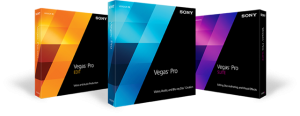
Vegas Pro 13 comes in three flavors: Vegas Pro 13 Edit, Vegas Pro 13, and Vegas Pro 13 Suite. The differences between them have more to do with what other titles ship with it rather than any differences in Vegas 13 itself.
Vegas Pro 13 Edit has an MSRP of $399.95. It includes the standard Vegas Pro 13, along with a plug-in collection form FXHOME and the new Vegas Pro Connect iPad app.
Vegas Pro 13 has an MSRP of $599.95 and includes everything from Edit, plus a Dolby Digital Pro encoder, DVD Architect 6, NewBlueFX’s Video Essentials VI plug-in collection, and iZotope’s Nectar Elements dialog processing plug-in.
Vegas Pro 13 Suite costs $799.95 and comes with everything in Vegas Pro 13 plus 25 royalty-free production music tracks, the Vegas Pro Production Assistant 2, Hitfilm 2 Ultimate, and Sound Forge 11 Pro.
Sony Vegas Pro 13
Sony Vegas Pro 13
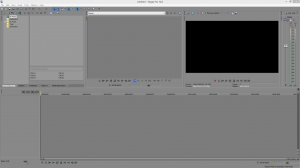
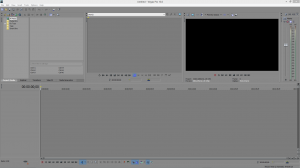
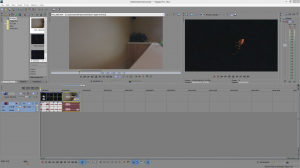
I took two photos, one of Vegas 12, the other of Vegas 13, to show you what has changed. Editing itself has not changed. Same controls, same timeline, same windows. If you’re familiar with Vegas, you will have no problems. If you’re used a different NLE, you will have no problems. Vegas comes with some pretty friendly on-screen tutorials showing you how to do all the basics.
Vegas Pro is capable of working with 4K using XAVC and XAVC S files. Here’s what it will open, and bear with us, it’s extensive: AA3, AAF, AIF, ASF, AU, AVC, AVCHD, AVI, BMP, BWF, CDA, DIG, DLX, DPX, DV, EXR, FLAC, GIF, H.264, HDP, IVC, JPEG, M2T, M2TS, MVC, MOV, Sony MXF (XDCAM and HDCAM SR), MP3, MP4, M4A, MPEG-1 and MPEG-2 video, MPO, OGG, OMA, Panasonic MXF (DVCPRO, AVC-Intra) PCA, PNG, PSD, QT, R3D, SFA, SND, TIFF, TGA, VOX, W64, WAV, WDP, WMA, WMV, XAVC Intra MXF, and XAVC S. Here’s what it will save to : AA3, AC3, AIF, ATRAC, AVC, AVCHD, AVI, DPX, EXR, FLAC, H.264, HDP, MOV, MP3, MPEG-1 and MPEG-2 video, MP4, M2T, Sony MXF (XDCAM and HDCAM SR), MVC, OGG, Panasonic MXF (AVC-Intra), PCA, W64, WAV, WMA, WMV, XAVC Intra MXF, and XAVC S.
Sony Vegas Pro 13
In addition to saving to those formats, projects can also be sent directly to Youtube, uplaoded to Sony’s own AcidPlanet, or saved in a different file format for opening in different editing and audio software. Projects can be saved to Adobe Premiere Pro and After Effects, Final Cut Pro 7, Final Cut Pro X, Avid Pro Tools, and Avid Media Composer. There is also the option to save it to an XDCAM disc or a Playstation Portable file.
Video effects are done in-program. Should you need different plug-in effects filters, several third-party heavy-hitters release their filters for Vegas, including but not limited to Boris, Digital Anarchy and GenArts.
One thing that has changed are some tool locations. In 12, Enable Snapping, Automatic Crossfades, Auto Ripple, Lock Envelopes to Events, Ignore Event Grouping, Normal Edit Tool, Envelope Edit Tool, Selection Edit Tool, and the Zoom Edit Tool are above the windows in the main toolbar. In 13, they are located in the timeline toolbar – the toolbar underneath the timeline.
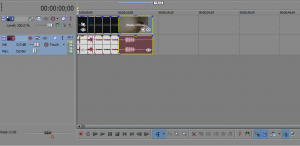
The new Timeline Toolbar is at the bottom.
I know some long-time Vegas editors won’t like this. With every piece of software comes some muscle-memory about where tools are located. Changing those could potentially slow-down some editors while they work as they have to search for tools.
There is a customize option for each toolbar in the options menu – Customize Toolbar and Customize Timeline Toolbar – but each is limited to separate groupings of tools. For example, if you want the Metronome tool as a button, you can only have it as part of the Toolbar. You can’t put it as part of the Timeline Toolbar. Likewise, you can’t add New Audio Track to the main Toolbar. It can only be part of the Timeline Toolbar. In future releases I would like to see the ability to add any tool button to any toolbar, regardless of location. That being said, I will admit it hasn’t taken me that long to get used to the new layout.
So what else is new?
The first one to point out is Vegas Pro Connect. This is an iPad app designed to give editors a way to review projects with clients and producers, make notes, and sync those note-markers to their actual timeline – all from their iPad. I’m going to write a longer piece about it later this week, so I don’t want to take too much time with it here. But I’ll say this – it’s fun. And, I think, useful.
Another new feature for Vegas Pro 13 is the option to export an archive of your project. Doing this allows you to have a copy of your project, with everything that goes with it, in a single location that you specify. For example, let’s say I imported six pieces of video and only used two in the timeline. When I archive, all six would go into the archive location that I specified. Besides basic backup, if you needed to make changes down the road, all the files you need are right there in the archive.
You also can change what you want in the archive. You can set it so only what media is actually used is added to the archive. So in my example of importing six pieces of video, and I’ve only used two in the timeline, by checking the box in the Vegas Project Archive dialogue box that says Exclude unused media, only those two shots used in the timeline would be part of the archive. Doing this could save you some storage. You also have the option of including nested projects used in your timeline, and including video proxies and audio peak files as part of the archive.
Other improvements include EBU R128/CALM loudness meters, which have already made their way into Sony’s audio programs. CALM stands for Commercial Advertisement Loudness Mitigation Act. In other words, this will help editors keep their audio within the rules.
If you or your organization shoot in XDCAM, you want to take a look at Sony Vegas Pro 13. If your camera-person has one of the Sony wireless adapters, such as the CBK-WA100, attached to their camera, proxies of the footage can be uploaded to the cloud from the field. The Vegas editor can download the proxies and cut, re-linking to the high-quality footage when it arrives, thereby saving precious time.
Also new in Vegas Pro 13 are seven plug-in filters from FXHome. These include Bleach Bypass, Light Flares, Scan Lines, Three Strip Color to simulate old color film stock, TV Damage. Vibrance to enhance saturation and contrast for a more cinematic look, and Witness Protection, for quickly hiding a face, license plate, etc. There is also reduced render times for those using XAVC Intra MXF render templates.
Editors who decide to go for Vegas Pro 13 instead of Vegas Pro Edit will also find NewBlue Video Essential VI, a group of ten plug-ins with 100 presets. These range from color replacement to garbage mattes. They will also get Izotope Nectar Elements is also included for one-click voice processing; DVD Architect Pro 6 for DVD and Blu-ray authoring; and a Dolby Digital AC-3 Pro encoder for surround sound.
Those who go for Vegas Pro Suite 13 get all of this, plus Hitfilm 2 Ultimate and Sound Forge Pro 11. Click either one for more info. Suite also comes with VASST’s Vegas Pro Production Assistant 2, 25 production music downloads from Sony Creative Software, and 100 sound effects from Blastwave FX.
A piece of bad news for those upgrading to 13 from a previous copy of Vegas 12 Suite: Titler Pro 1, included with Vegas Suite 12, will not work in Vegas 13 with the serial number supplied from Vegas Suite 12. I wrote NewBlueFX and asked about this.
Here’s what they said, “Titler Pro 1 is not bundled with Vegas Pro 13 so it will have a watermark. When used in Vegas Pro 11 or 12, there will be no watermark. The only way to remove the watermark in Vegas Pro 13 is to use a retail Titler Pro 1 serial number. When upgrading to Vegas Pro 13, you are offered the Titler Pro 3 upgrade at a special price with a free Lower 3rds packages. The cost to purchase Titler Pro 1 is $99. The upgrade price to Titler Pro 3 is $99 plus you get a free Lower 3rds package worth $60 too.”
The only problem I can report had to do with with opening the NLE for the first time. I downloaded the program, installed it, authenticated via my serial number, and started it up. It crashed after creating the file I/O manager. I tried again, same result. I went on to Sony’s Vegas Pro forum and discovered several people having this problem.
I dug around some more, and discovered that an older version of NewBlue Titler was the culprit. If you have an older version of Titler Pro 1, Titler Pro 2, or TitlerEX on the machine you want to install Vegas Pro 13 on, you need to go here and click the link in yellow to get to the update downloads. I had Titler Pro 1 on my machine, from the Sony Vegas 12 suite on my machine. Once it is updated, Vegas will open. The moral of this story is check for upgrades. If I had updated in a timely fashion, I wouldn’t have had the installation / startup problem.
Sony Vegas is one of the most affordable NLE packages around for the Windows user. The basic, Vegas Pro 13 Edit, retails for $399.99. Taking it a step up to Vegas Pro 13, gives you surround sound processing, DVD Architect Pro 6, plus new effects from NewBlue and iZotope’s Nectar Elements.
The top-tier, Sony Vegas Suite Pro, comes in at $799.99. For that price, you get everything from the other editions plus Hitfilm 2 Ultimate, Vegas Pro Production Assistant 2, 25 music tracks and Sound Forge Pro 11. If you don’t have Sound Forge Pro 11, this could be worth it for you right there. Compare these one-time purchase prices. Adobe will run you $50.00 a month for as long as you use it. Avid Media Composer starts at $1000.00, or $50.00 per month with the upcoming subscription plan. Use the software for sixteen months and it already works out as less expensive than Avid or Adobe.
If you’ve never used Vegas and are looking for a 4K-capable NLE that will work with Windows, I urge you to check it out. If you have a previous version of Vegas, take a look at upgrading. Upgrades start at $199.95 and range up to $449.99, depending what version you decide to upgrade to.
You can download a trial version here. Check it out.
Happy cutting.

 About Jeremiah Hall


P.S. I don’t have a watermark with the current version I’m using. (Movie Studio Platinum 13)
I use the Vegas 13 Miovie Studio Platinum (price is an issue right now and I’m happy with it so far). I download a trial version of Vegas Pro 13 edit and a watermark appears on the preview screen. I’m assuming that when I publish the video the watermark will be on the video? If I purchase Vegas Pro Edit 13 will the watermark still show on the videos? Trial versions of other software I have seen watermarks but never with Sony Vegas.
When price isn’t an issue I’d love to invest in Vegas Pro Edit 13.
Thank you!
Lisa, I believe the watermark disappears when you purchase it.
Vegas pro 13 opens correctly the files of the PXW-Z100. Now the noise at 0db is correct and the color on screen are in the good colorspace. The values in the vectorscope are exact. So good bye vegas 12.
I have been using Vegas Pro 13 alongside version 12 as a precaution since it came out mid-April and the experience with vp13 has been good so far. I love the VP Connect app on iPad – as it allows you to check through the edited material and make comments when not sat at the editor. I also like the fact that you can save a vp13 file and still use it in vp12 if on another machine, something that has not always been possible in the past. Rendering is also slightly faster. I am using it with 4K (output from Sony’s PXW-Z100) as well as in HD. An update fixing some problems has been issued in the last day or so.